BANZ
Scenario 5: Pick up on another device
The work runs on the computer at the office, so when you’re at home or out, you can’t see it. Sign in with the same account on another computer or on your phone, and you can keep watching and keep answering from there.
On another computer
- Install banz on the other computer and sign in with the same account.
- Your projects, chats and memory are all there right away.
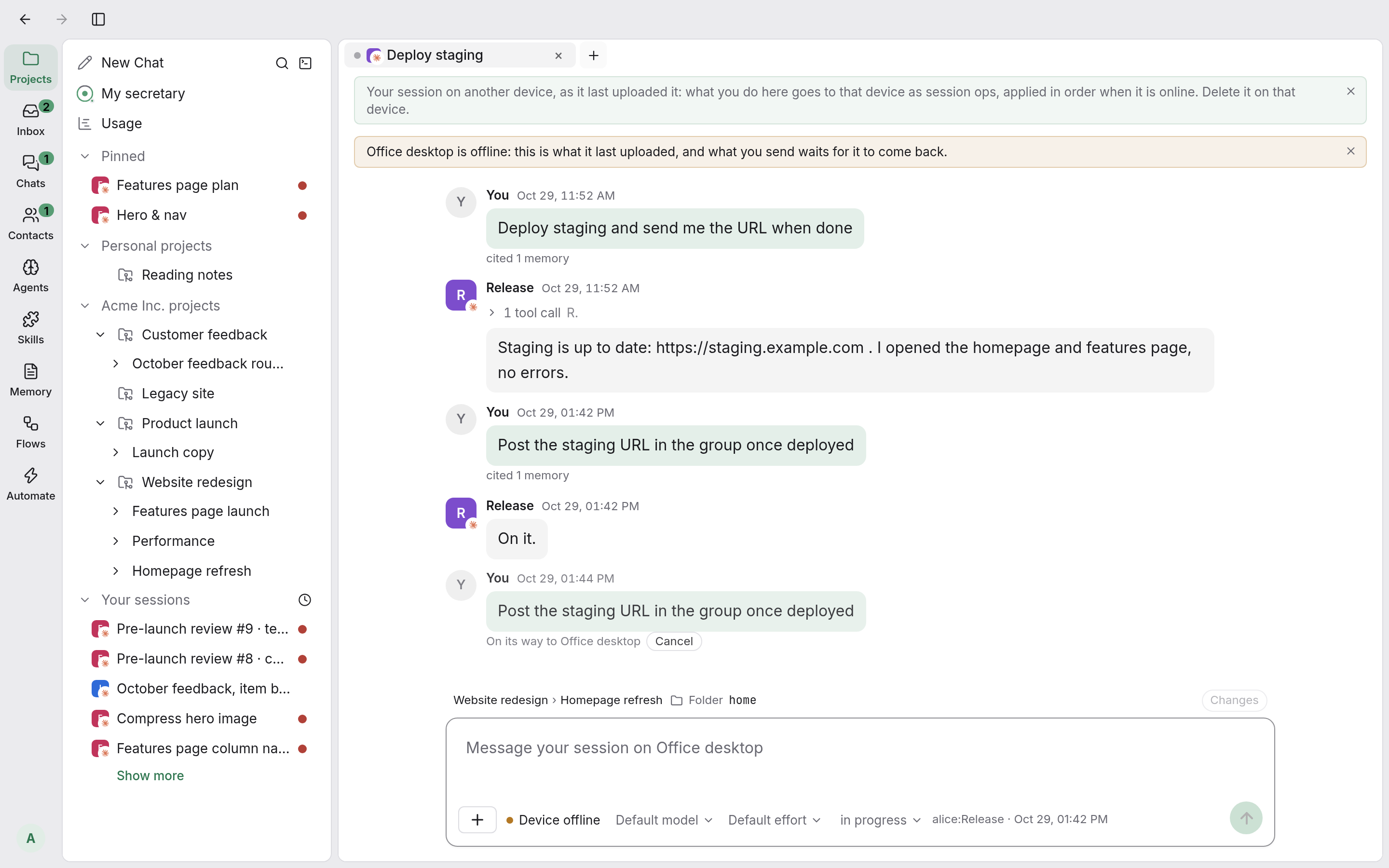
- In “Your sessions”, sessions on other computers show the device name at the end of the row, such as “Office desktop”. Open one to read the conversation, send messages and answer questions.
Below each message you send, you’ll see “On its way to Office desktop”. That computer runs it once it gets it. If that computer isn’t online, the message is delivered when it comes back online.
When you make a new session, you can also pick an agent on another computer, and the session starts on that computer.
If you want the agent to use files that are already on the session’s computer, click the + in the bottom-left corner of the input box, choose “On the session’s device…”, tick the files and send them. You don’t have to copy them to the computer in front of you first.
An agent belongs to the computer it’s on. If you want the same agent on a new computer, make one on that computer.
On your phone
- Open https://service.emphar.com in your phone’s browser and sign in with your account.
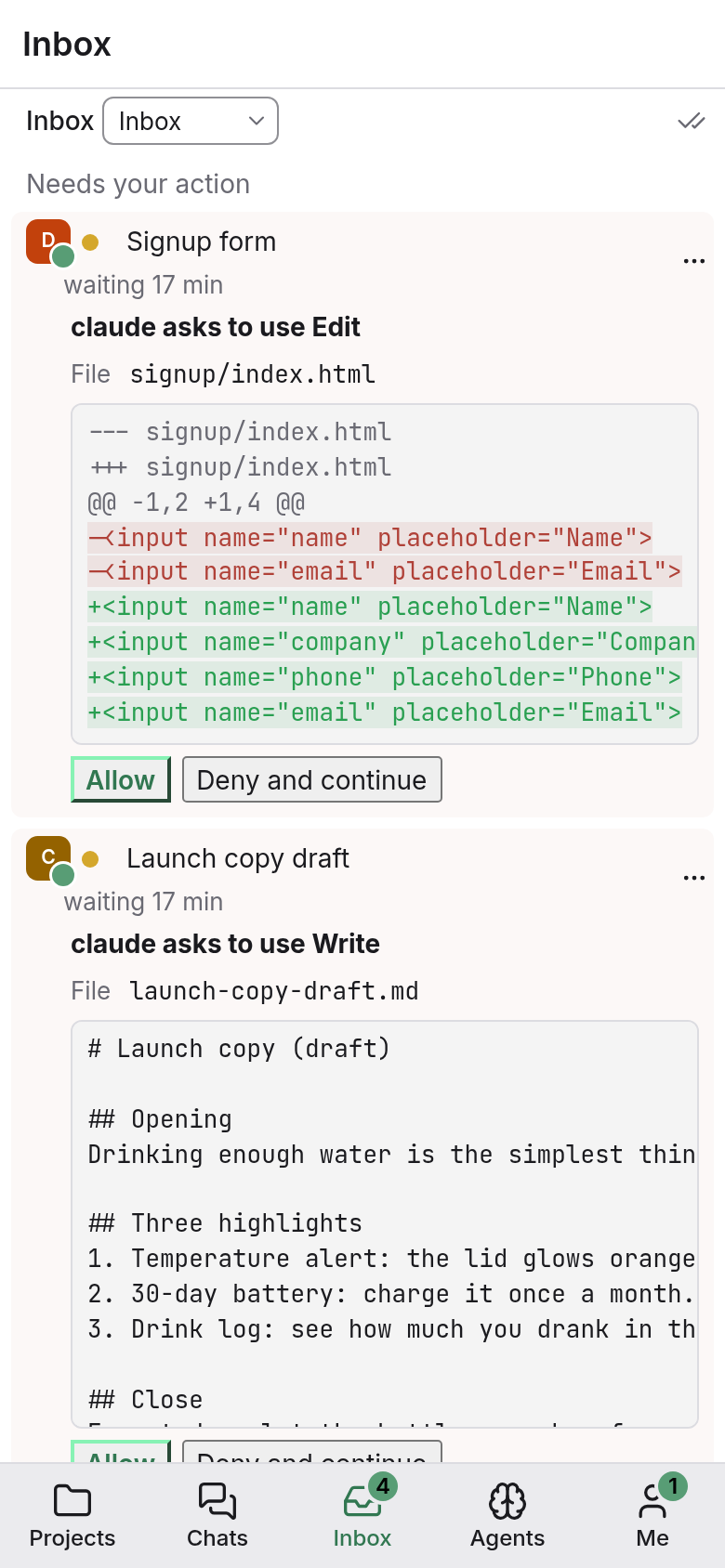
- The workbench switches to the phone layout, with five tabs at the bottom: “Projects”, “Chats”, “Inbox”, “Agents” and “Me”.
- In “Inbox” you can answer questions from sessions on any of your computers. In “Projects” you can see how each piece of work is going and talk to your secretary.
On the phone and on the web you can’t make new agents or change your secretary’s settings. Do those on a computer with banz installed.
Look after your devices
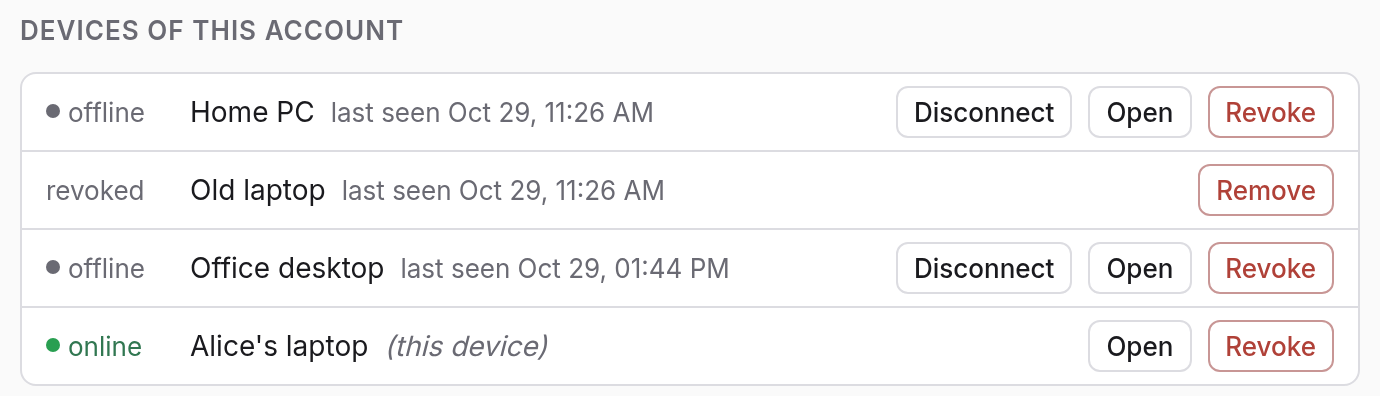
Open settings (click your avatar in the bottom-left corner and choose “Settings”). Under “Account”, “Devices of this account” shows whether each computer is online or offline. If a computer is lost or you no longer use it, click “Revoke”. It gets signed out and can’t connect again.