 BANZ
Scenario 3: Let your secretary keep watch
On this page
While you’re working on one thing, you keep wondering whether your other sessions have finished or are waiting for you. You can leave that to your secretary. The secretary is an agent that belongs to your account. It starts sessions for you, follows up on them, and hands the results back to you when they’re done.
1. Turn on your secretary
- At the top of the “Projects” list, just below the “New Chat” row, click “My secretary”.
- On the “Your secretary” card, choose three things:
- “Runs on” is the computer it runs on. It only works while that computer is on.
- “Program” is the agent program it uses.
- For “Permissions”, choose “Ask me before acting” to start with. It can look at anything, but it asks you before changing anything.
- Click “Turn on”.
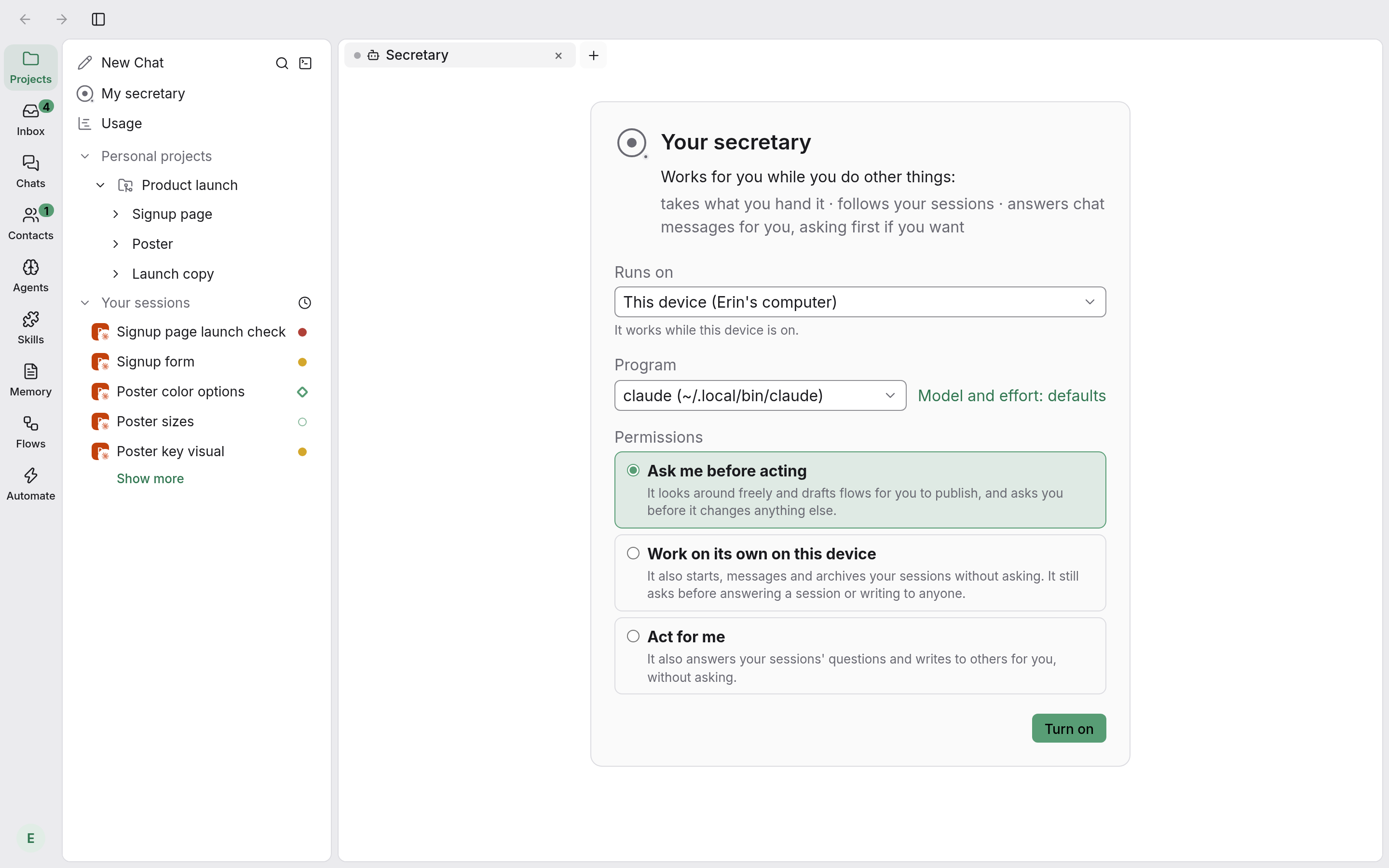
Once you’re used to it, you can loosen its permissions. With “Work on its own on this device” it can start, message and archive your sessions without asking. With “Act for me” it can also answer your sessions’ questions and write to other people for you.
2. Hand work to it
There are three ways. The most direct is to tell it on the secretary page, for example: “Start a session to rewrite the launch copy in three versions, keep an eye on it and tell me when it’s done.” You can also right-click an item in the inbox and choose “Let the secretary handle it”. Or, on the “What your secretary is doing” board, drag an item into the “Queued” column.
When you want to handle something yourself, click “Take it back from the secretary”. When you don’t want it watching a session any more, click “Stop following”.
3. See what it’s doing
On the secretary page, the input row has a small label, such as “2 working · 1 needs you”. Click it to open the “What your secretary is doing” board:
| Column | What’s in it |
|---|---|
| Queued | Work you’ve handed it that it hasn’t picked up yet |
| Working | What it’s doing now, and the sessions it’s following |
| Needs you | Sessions it’s following that are waiting for your answer |
| Done | Work it has handed back to you, with its notes |
A card marked “Following” is a session it’s keeping an eye on. A card marked “Started by your secretary” is a session it started.
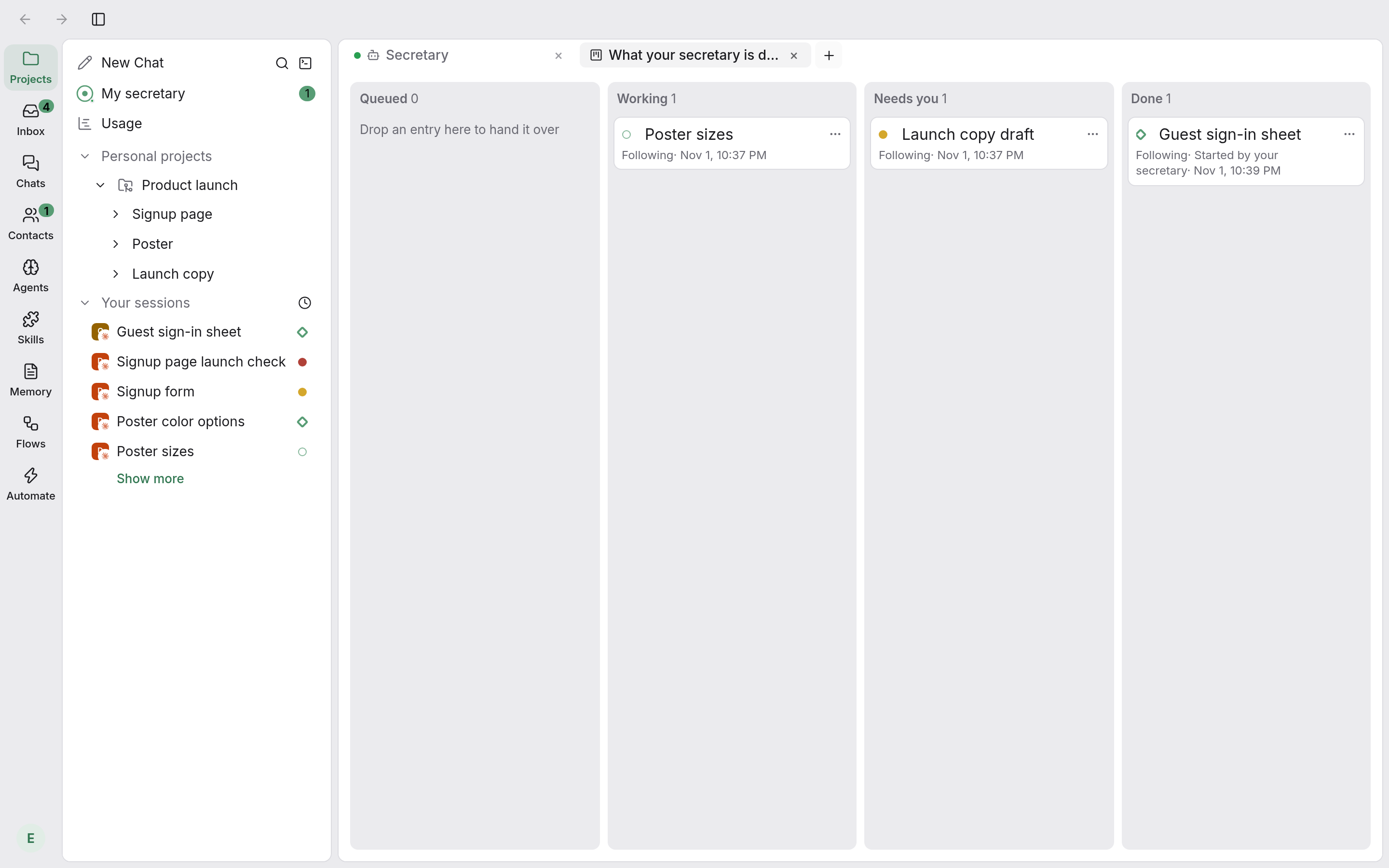
When something it’s following is done, it shows up in the “Done” column and also lands in your inbox.
4. When you’re in a meeting or away
Say Alice has a two-hour meeting:
- Before the meeting, Alice clicks the settings icon in the top-right corner of the secretary page to open the secretary’s settings, and under “Hand-over”, in “What it takes on its own”, chooses “Chats”. Any messages people send in the meantime go to the secretary first.
- Under “Conversation”, Alice sets “Catch me up when I come back” to 1 hour.
- After the meeting, Alice opens the workbench, and the secretary sums up in a few sentences what happened in the meantime.
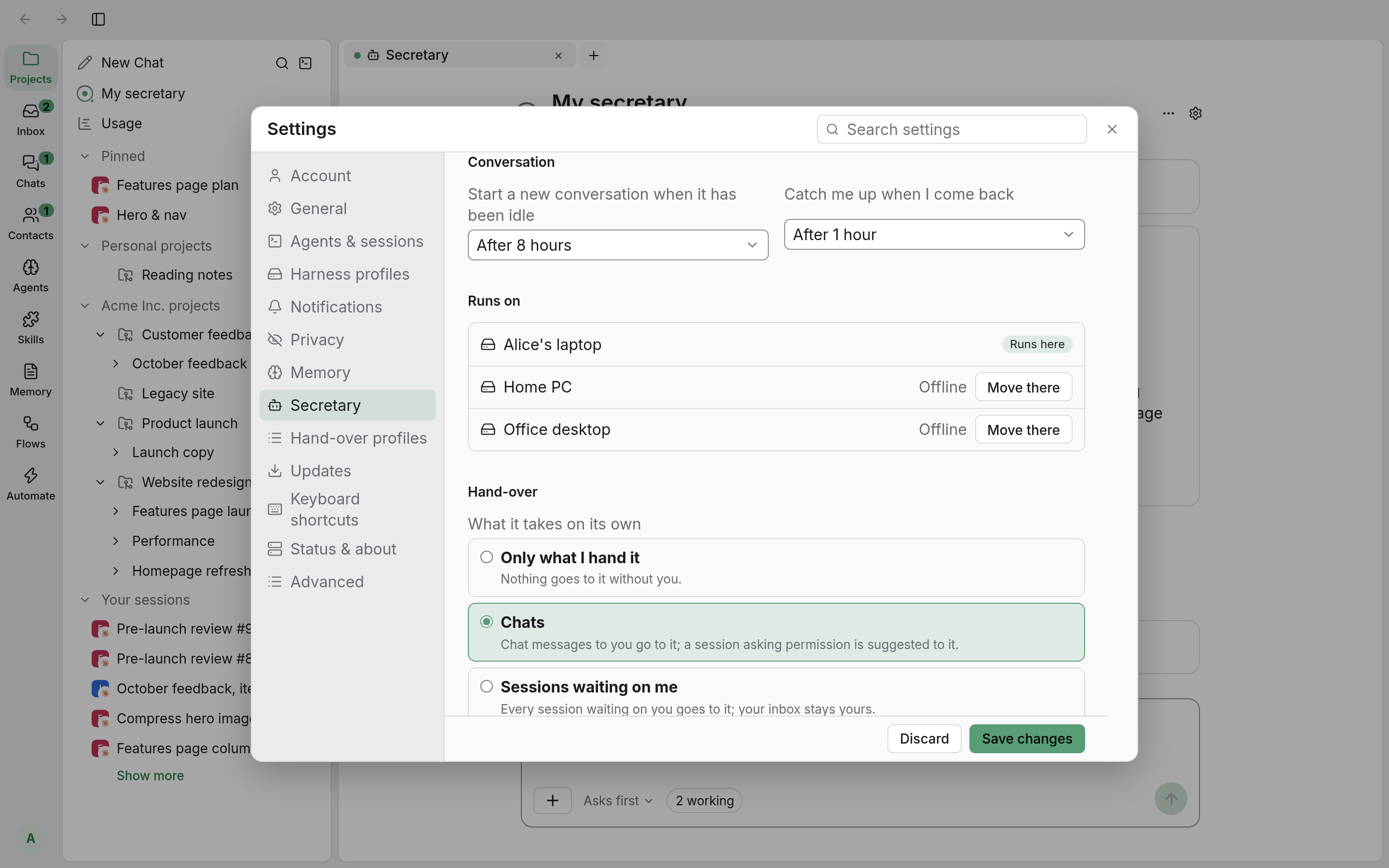
The secretary only works while the computer it runs on is on. If that computer is off, the secretary page says “Your secretary is offline”. Click “Move it here” and it will run on the computer in front of you instead. After the move it starts a new conversation on the new device, so you’ll need to hand it anything unfinished again.