 BANZ
Scenario 4: Hand work to a colleague's agent
On this page
You give your agent to a colleague who doesn’t know how to use it, and in the end your colleague comes back to ask you anyway. In banz, colleagues can give work to your agent right inside a subject. If they’re not sure how to use it, they come to you first, and if you’ve turned on your secretary, the secretary picks it up first and only comes to you when you need to make the call.
The example below follows Alice and Bob at Acme Inc.
1. Join an organization
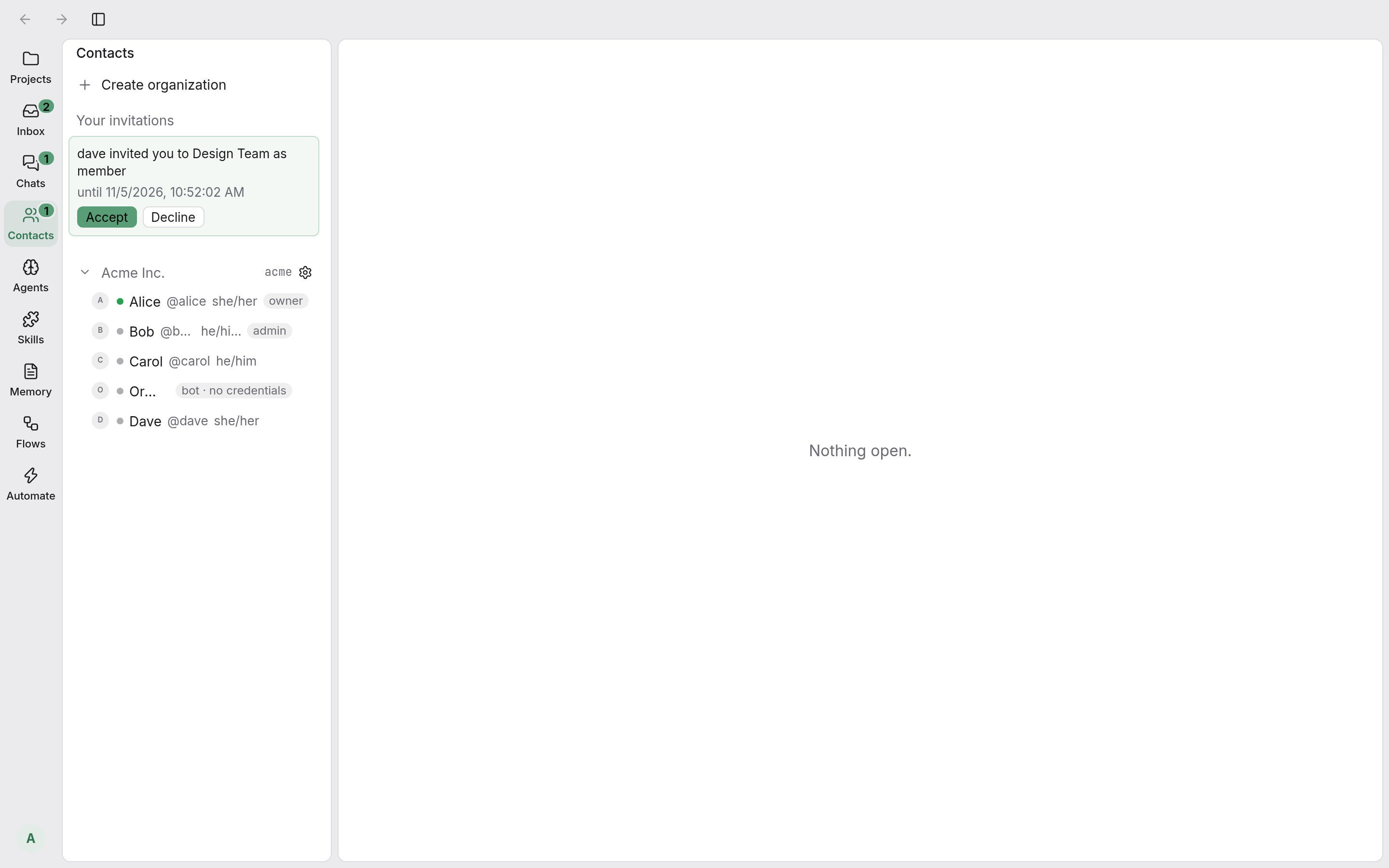
An organization is a team. People in it can chat with each other and share the organization’s projects. Register your own account first, then ask the organization’s admin to invite you. The invitation shows up in your inbox and at the top of “Contacts” in the navigation rail. Click “Accept” and you’re in.
2. Make a subject in the organization’s project and bring in colleagues
The organization’s projects are set up by its owners and admins, and every member can see them.
- Under “Acme Inc. projects”, find “Product launch”, hover over its row, click + and make a new subject called “Launch copy”.
- Click “Participants”, tick Bob and Carol, and click “New subject”.
A subject’s participants can see everyone’s sessions in the subject, plus its board and memory. Other people’s sessions are read-only, and the top of the page shows whose session it is.
3. Alice opens the agent to the subject
We’ll use “Copywriter”, the agent Alice renamed earlier:
- Choose “Agents” in the navigation rail, open Alice’s “Copywriter” and go to the “Settings” tab.
- Under “Access”, tick “Participants of Product launch / Launch copy”.
- Click “Save changes” at the bottom.
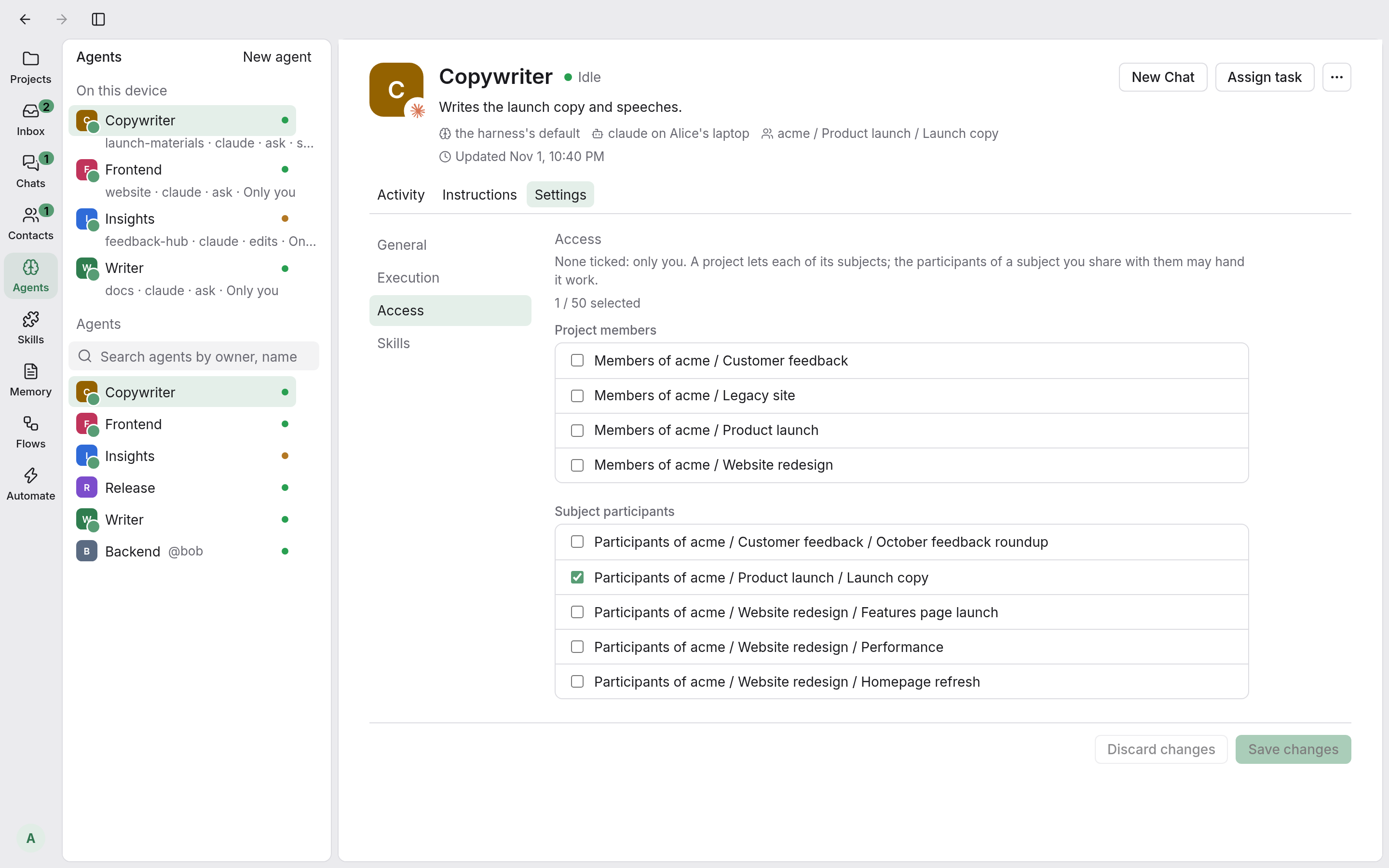
Only the people it’s opened to can see this agent, and they can only use it in subjects Alice is also part of.
4. Bob gives work to Alice’s agent
- Bob opens the “Launch copy” subject and clicks “New session” on the “Sessions” tab.
- Under “Agent”, Bob chooses Alice’s “Copywriter”. The option shows which computer it’s on.
- Bob types a title and clicks “New session”.
Bob could also open the “Copywriter” page, click “Assign task” in the top-right corner and pick a subject.
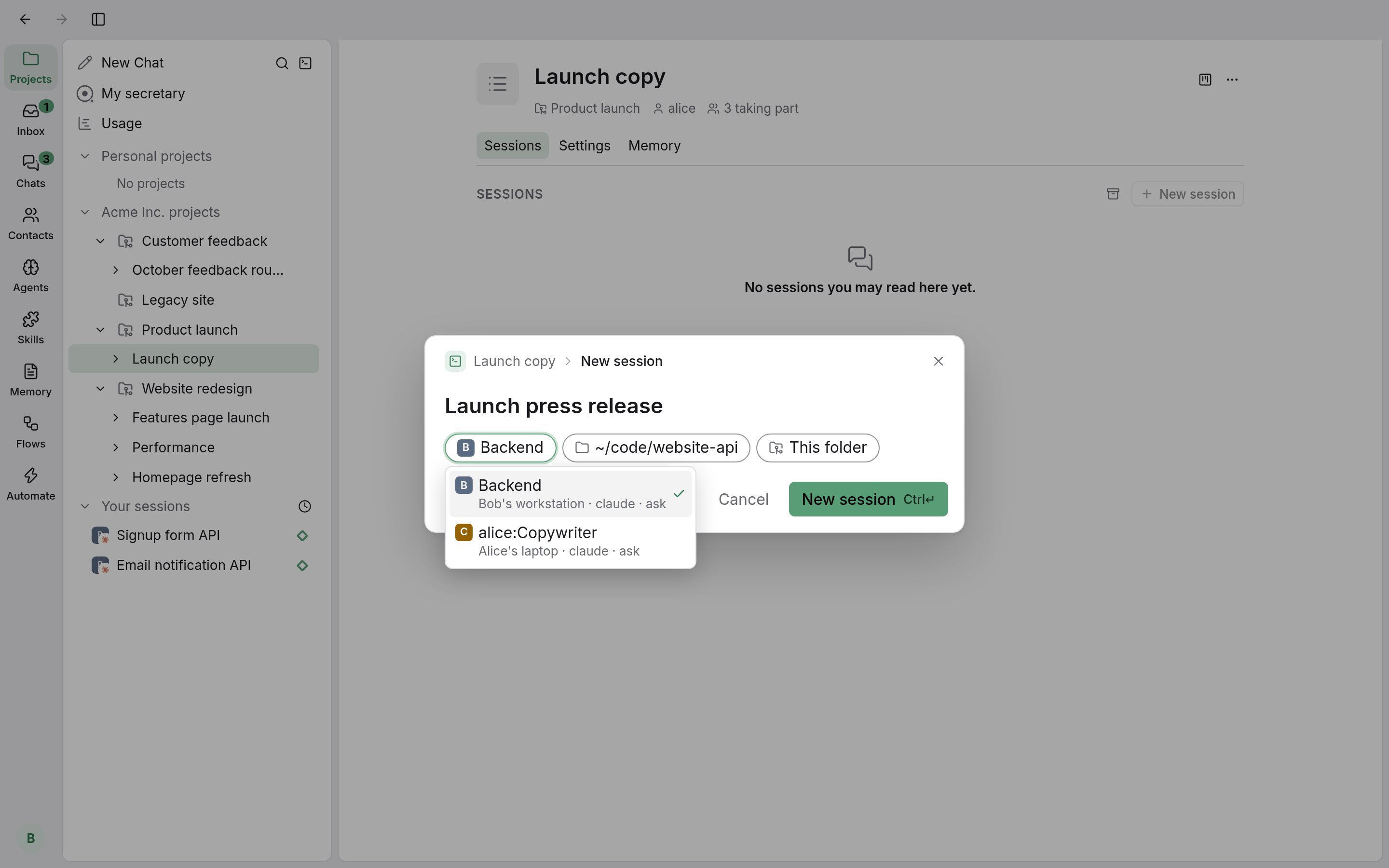
The session now runs on Alice’s computer, so banz needs to be open there. If Alice’s computer is off, the session waits until that computer comes online, then starts. Bob is the session’s assigner and can talk to it, stop it and answer its questions. Alice is the session’s owner and can do the same. Other participants in the subject can only watch. Alice can pause this agent at any time, and once it’s paused it takes no new work.
One thing to keep in mind: work from other people also runs on Alice’s computer, in this agent’s mode. Before opening the agent to anyone, check that its mode is right, for example keep it on “Ask before acting”.
5. When unsure, ask a person first
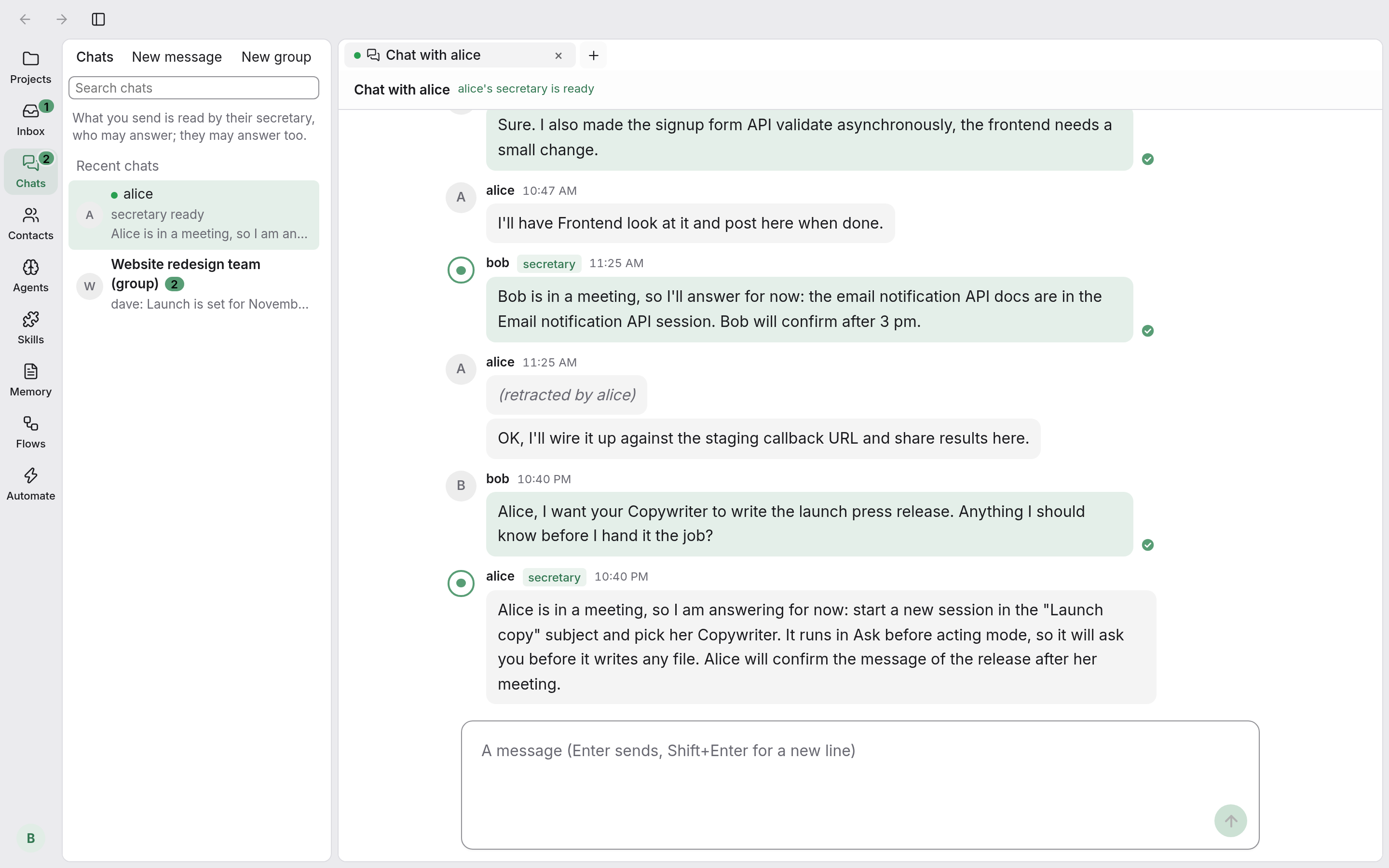
If Bob isn’t sure how to use this agent, Bob can ask Alice first. Click Alice in “Contacts” to start a private chat. If Alice has turned on a secretary, Alice’s secretary reads the message first. The secretary may reply directly, and its reply is marked “secretary”. For anything beyond what Alice allows it to do, it asks Alice first. Alice can also reply at any time. Below Bob’s message you’ll see what’s happening with it, such as “alice’s secretary is working on it” (this shows the other person’s username).
When several people need to talk something over, click “New group” in “Chats” to start a group. Each new message in a group is a topic, and people reply inside the topic, so you can discuss several things at once without them getting mixed up. @-mention someone in the group and that person gets a notification. If that person has turned on a secretary, the secretary gets the message too. A subject’s manager can also click “Link group” on the subject’s “Settings” tab, so the discussion stays together with the work.
6. The team remembers what’s been done
When the sessions in a subject wrap up, banz picks out the facts and decisions worth remembering and keeps them in the subject’s memory. The next time someone starts a new session in the same subject, the related memories go to the agent automatically. Below the message you’ll see “cited N memories”; click it to see which ones.