 BANZ
Scenario 2: Several things at once
On this page
- 1. Make a project and subjects
- 2. One session for each piece of work
- 3. See at a glance who’s working and who’s waiting for you
- 4. Follow progress with work statuses and the board
- 5. Handle everything waiting for you in the inbox
- 6. Two pages side by side
- 7. Just ask how it’s going
- 8. Put it away when it’s done
You have several conversations open, each with nothing but a title. After a while you forget what each one is for and how far it has got, so you end up opening them one by one to ask. In banz, each piece of work goes in a project and subject. You follow progress with the marks, work statuses and the board, and answer everything in one place in the inbox. When you want to know how something is going, just ask your secretary.
The example below follows Erin getting ready for a “Product launch”.
1. Make a project and subjects
A project is a longer-running body of work. A subject is one specific piece of work inside a project.
- In the “Projects” list, hover over the “Personal projects” row, click the + on the right, type the name “Product launch” and click “New project”.
- Hover over the “Product launch” row, click + (“New subject in Product launch”), type a title, such as “Launch copy”, and click “New subject”.
- Make two more subjects, “Poster” and “Signup page”, the same way.

2. One session for each piece of work
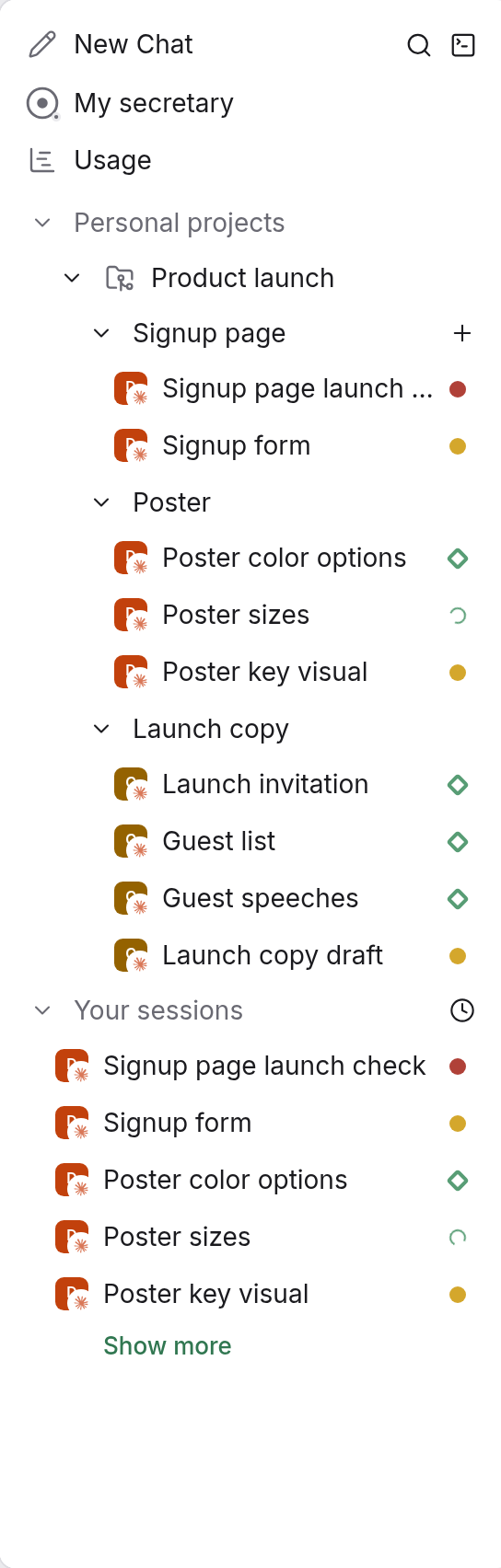
Hover over a subject’s row, click + (“New session in Launch copy”), type a title for the session, choose an agent and click “New session”. That way every session sits under its subject. When the title doesn’t tell you enough, the subject it’s in tells you what it’s for.
3. See at a glance who’s working and who’s waiting for you
Each session in the list has a small mark in front of it:
| Mark | Meaning |
|---|---|
| Spinner | Working |
| Yellow dot | Waiting for your answer |
| Diamond | Finished this round; you haven’t looked yet |
| Red dot | Ran into an error |
When you see a red dot, open the session. It tells you what went wrong, and sometimes the conversation has buttons to deal with it. If you’re not sure what to do, right-click the session and choose “Restart and resume”, or send the error to your admin.
4. Follow progress with work statuses and the board
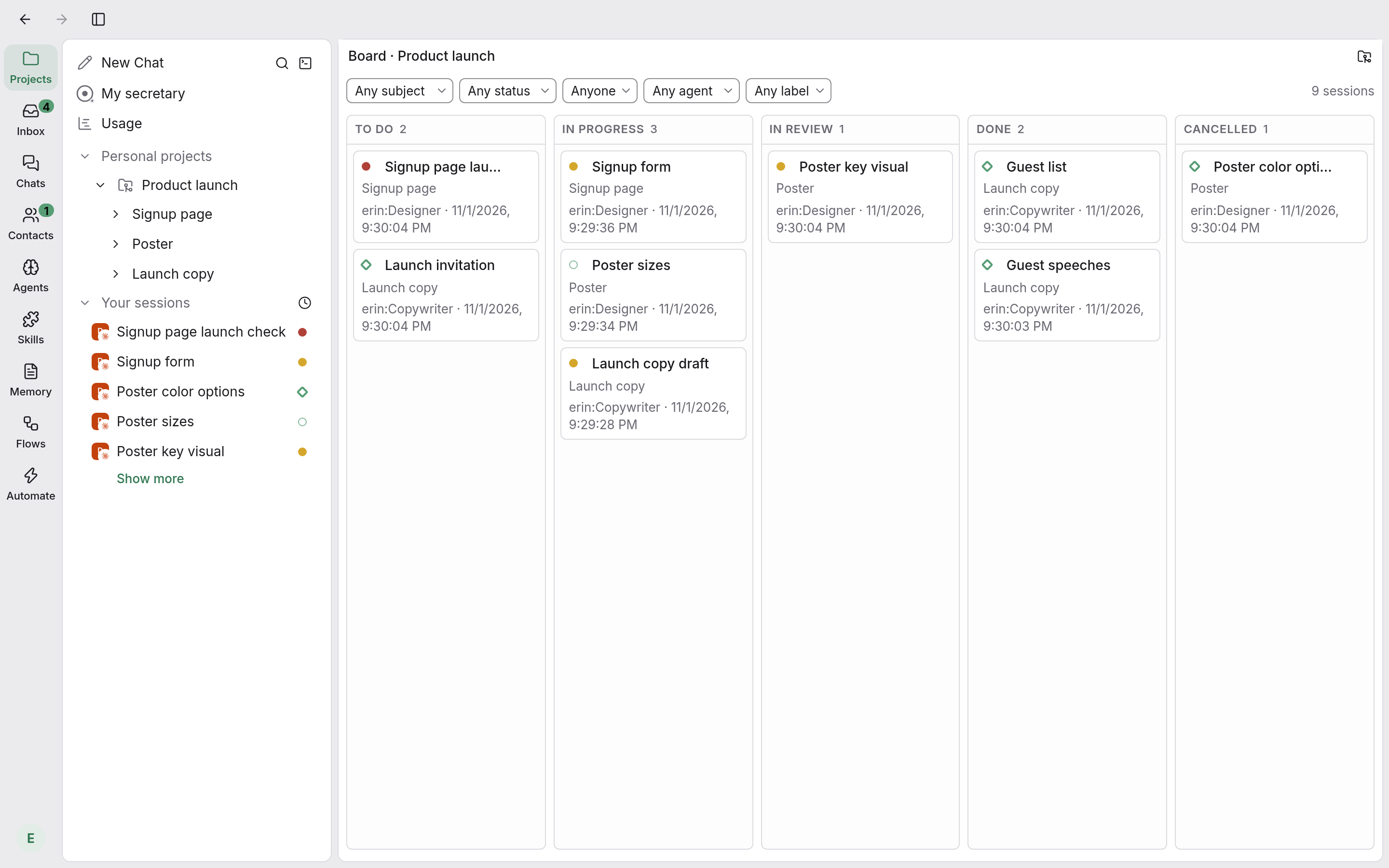
Every session in a subject has a work status: To do, In progress, In review, Done or Cancelled. New sessions start as “In progress”. The agent in a session can update its own work status, and you can change it yourself too: on the session page, click the last item in the row below the input box and pick one.
For the big picture, open the project page or a subject page and click “Board” in the top-right corner. There’s a column for each work status and a card for each session, and dragging a card to another column changes its status. On a project’s board, each card also shows which subject it belongs to.
5. Handle everything waiting for you in the inbox
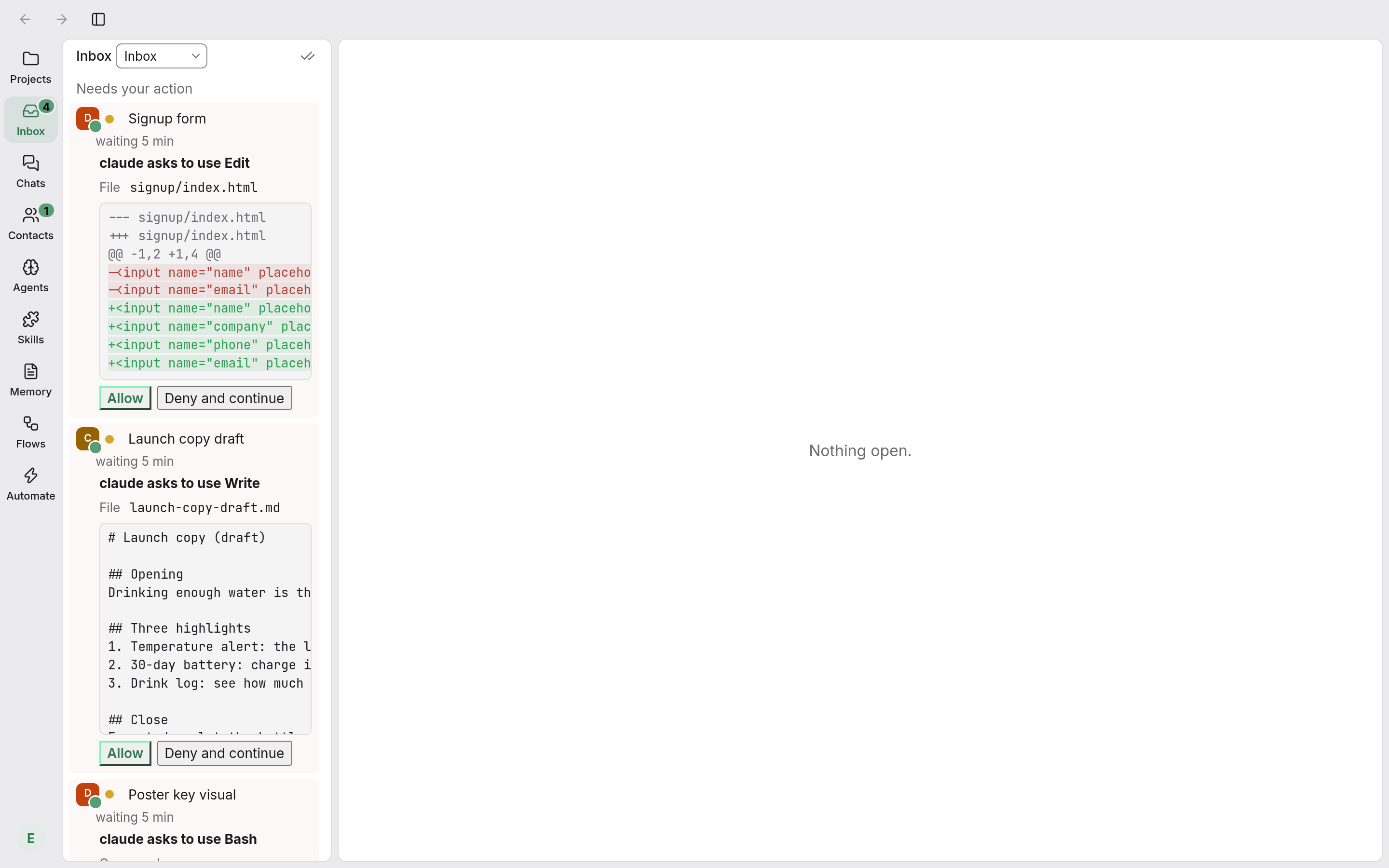
Click “Inbox” in the navigation rail. “Needs your action” lists every session waiting for your answer, plus invitations, requests and anything else you need to deal with. The number on the icon is how many there are. You can click “Allow” or “Deny and continue” right on the card, or answer the question there, without opening the session. “Messages and results” lists the sessions that finished a round, with the last thing each one said.
If a session has been waiting for you for more than 10 seconds, your computer shows a desktop notification. To change how soon you’re reminded, or set quiet hours, go to “Notifications” in settings.
6. Two pages side by side
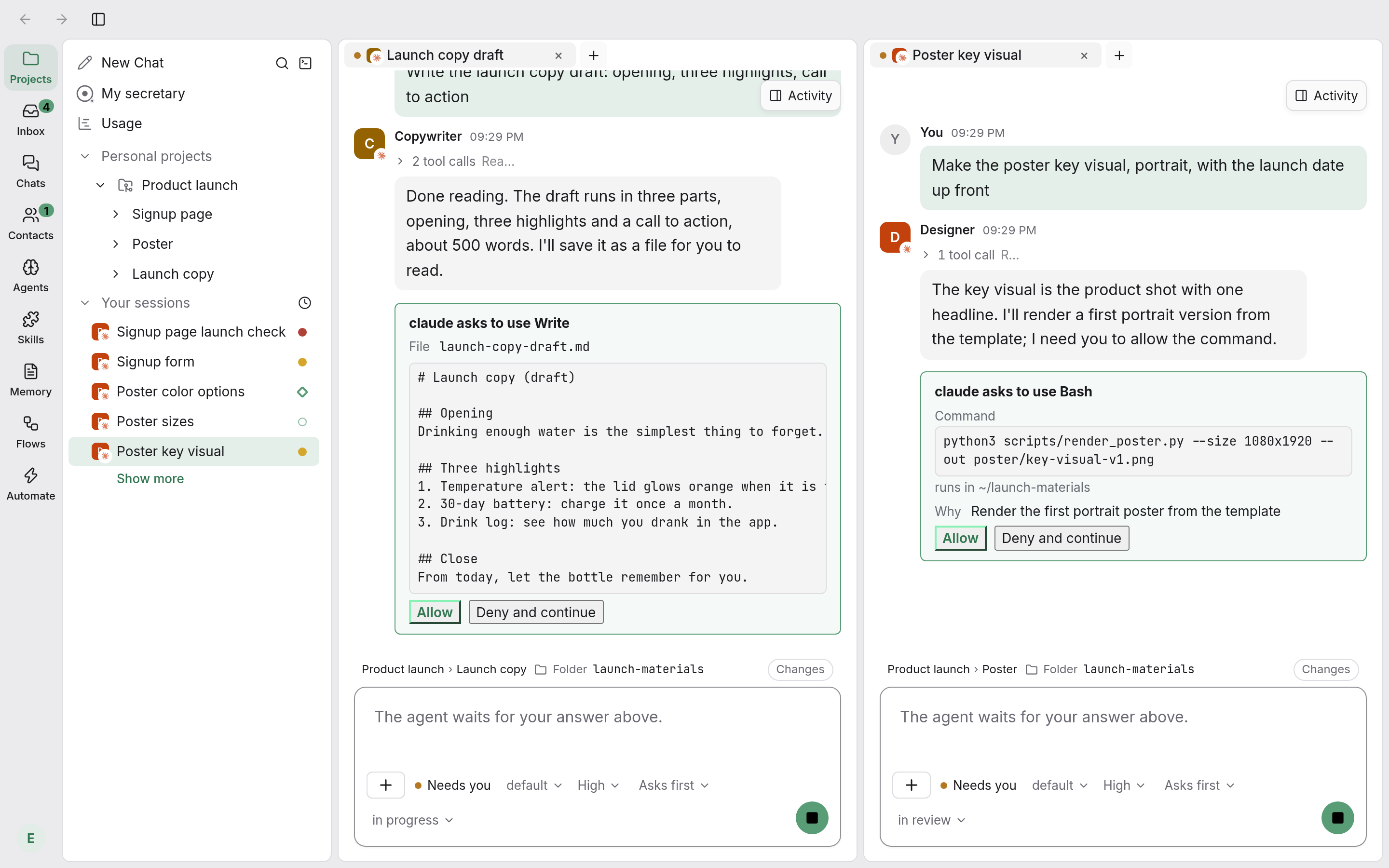
Open two sessions first, so each has its own tab. Drag one of the tabs to the right side or the bottom of the main area, and the main area splits in two. For example, you can have the copy session on the left and the poster session on the right.
For a session you check often, hover over its row and click “Pin”. It moves up to “Pinned” at the top of the list.
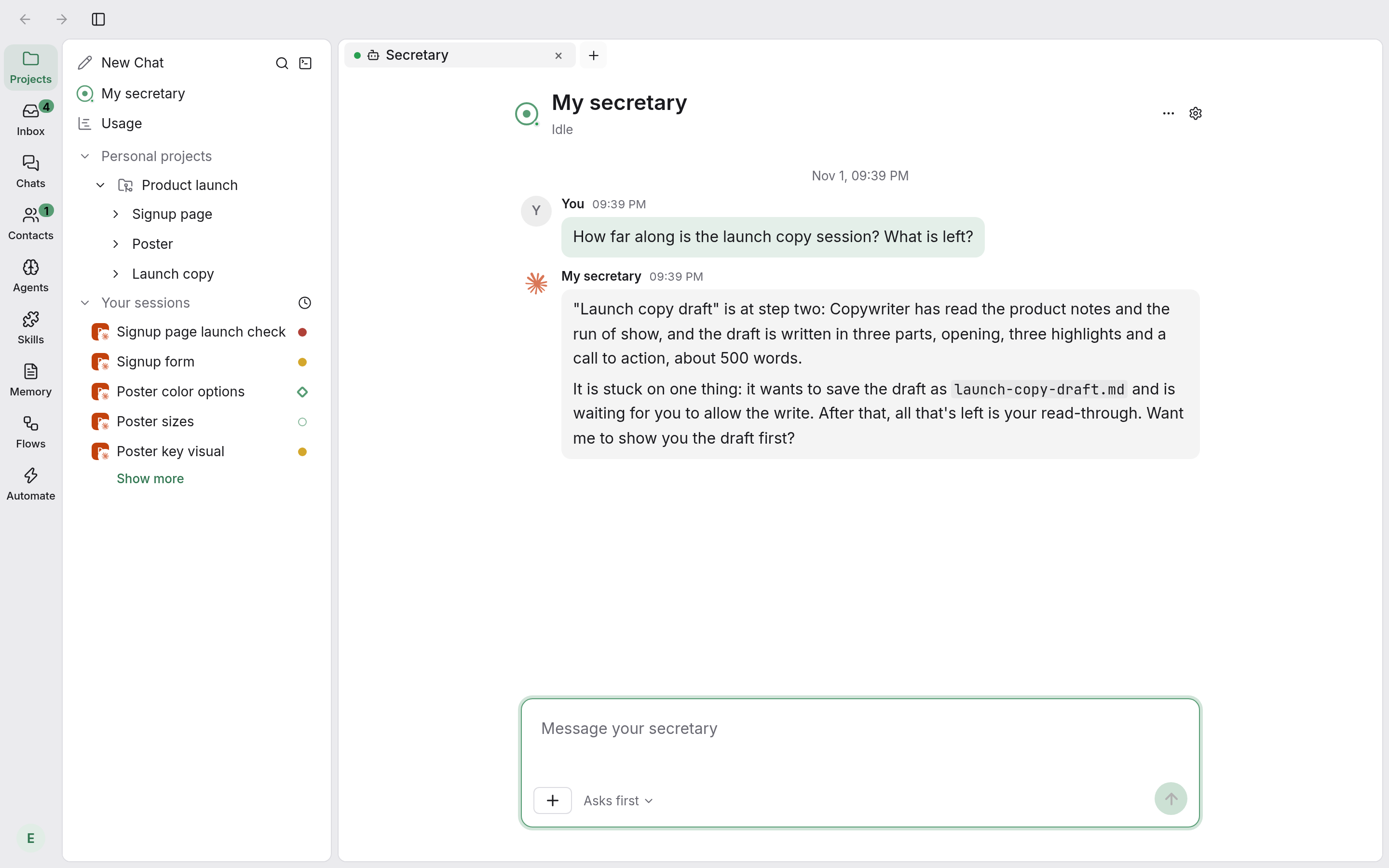
7. Just ask how it’s going
To find out how far “Launch copy” has got, you don’t need to open it and scroll through the conversation:
- Click “My secretary” at the top of the list column. (If you haven’t turned on your secretary yet, see Scenario 3 first.)
- Ask in the input box: “How far has the Launch copy session got? What’s still missing?”
- It reads that session’s conversation, checks the related memories, and tells you in a few sentences which step it’s on and where it’s stuck.
8. Put it away when it’s done
When the work is finished, set its work status to “Done”. If you don’t want it in the list any more, right-click its row and choose “Archive”. An archived session keeps all its content, and when you need it again, “Unarchive” it and carry on.